
See below the procedure to install you app manually and to communicate with the users.
If you refer to an MDM, contact your IT department and/or your Touch & Sell agent.
1st step: User registration in T&S Studio (the administration interface / back office) by the account administrator
This first step is essential for the user to be able to connect to the application later on.
In T&S Studio > Organization > Users, click on Create a user to create a user record.
You can also import a list of users.
Step 2: The user installs the application on his device
Installation steps :
Option A :
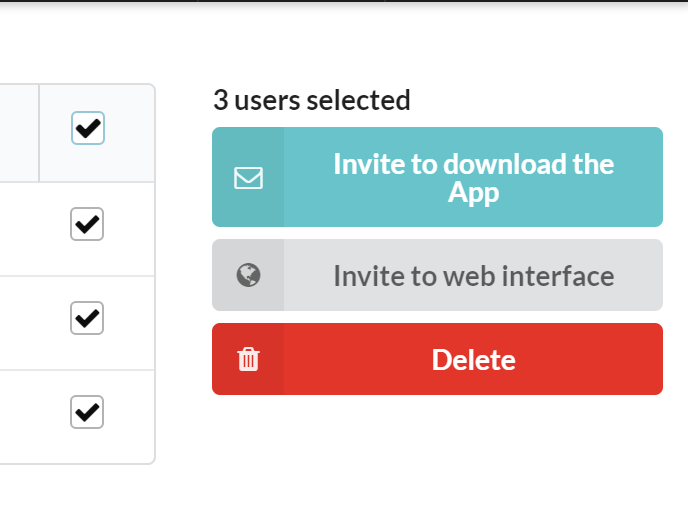
From T&S Studio > Organization > Users: check the users you want to invite, then click "Invite to download the App" in the right column.
Option B:
Communicate the download URL directly to your users: https://studio.touch-sell.net/XXX/app (where XXX is your customer number).
The users themselves must perform this installation step from the download page. We invite you to give them these instructions and make sure they are authorized to install applications on their device.
1/ From the download page, make sure you are on the Android tab
2/ Click on the Download button:
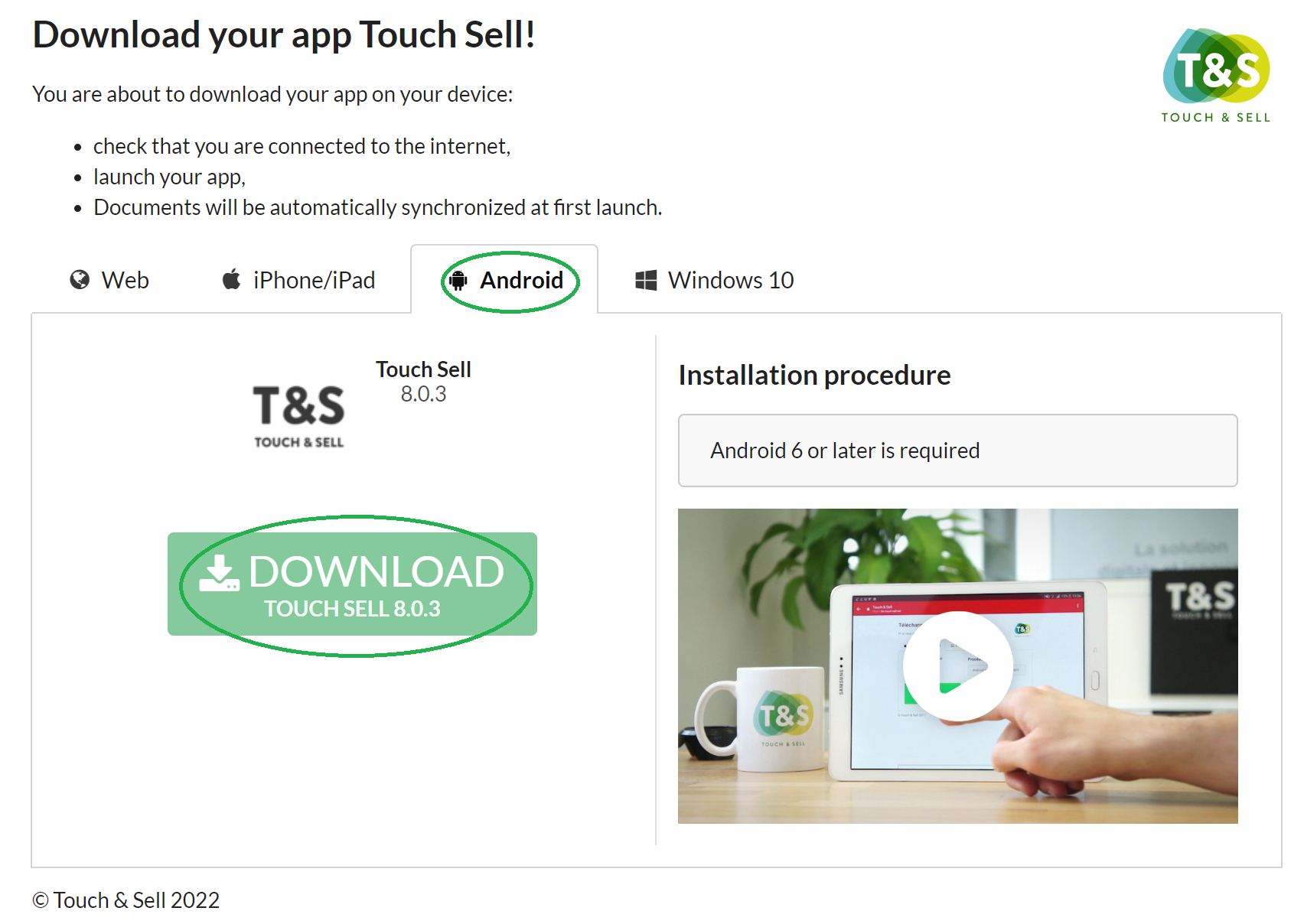
3/ A window appears, click on Install. The download starts, you can go back to the main screen of your device.
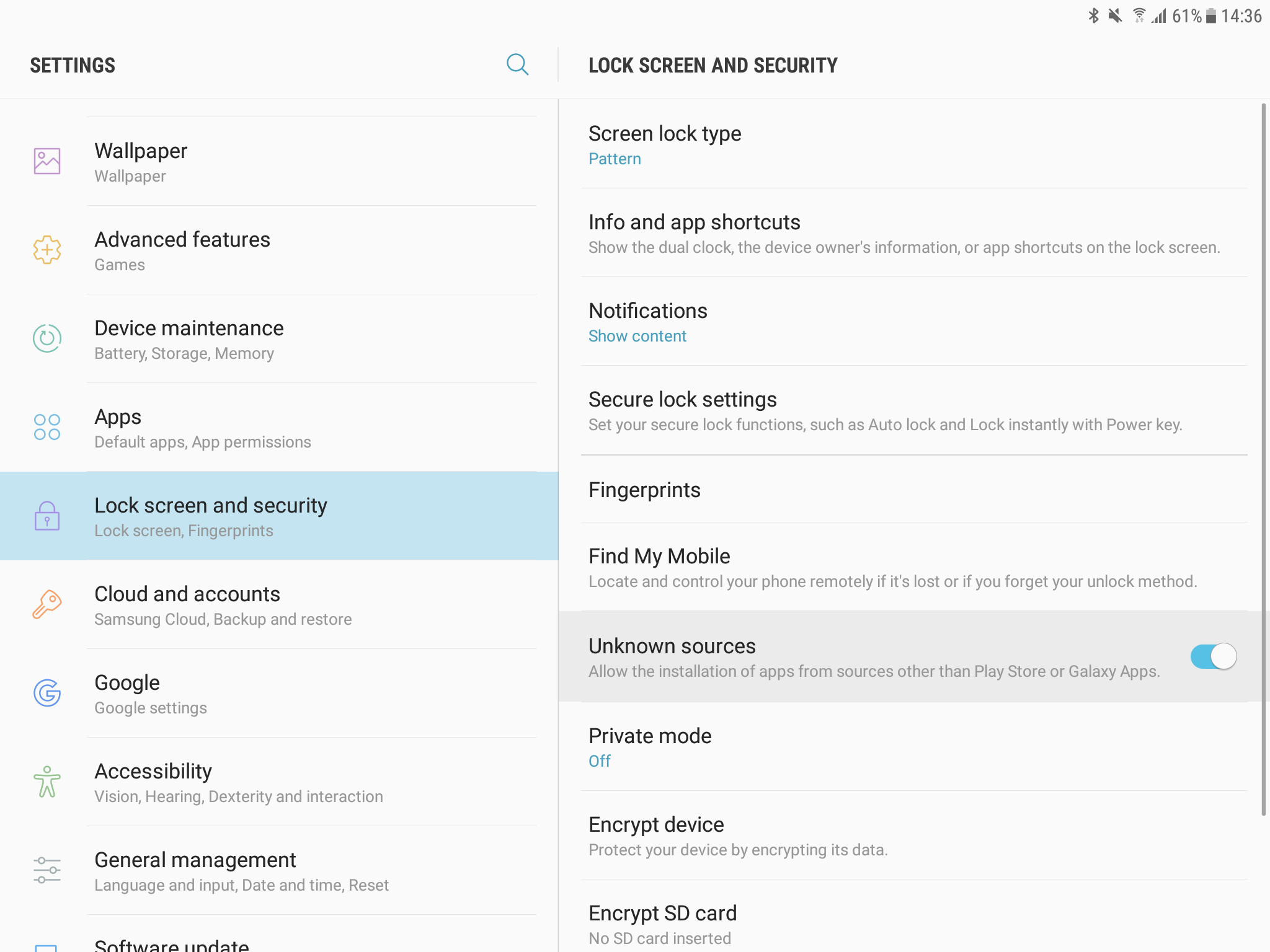
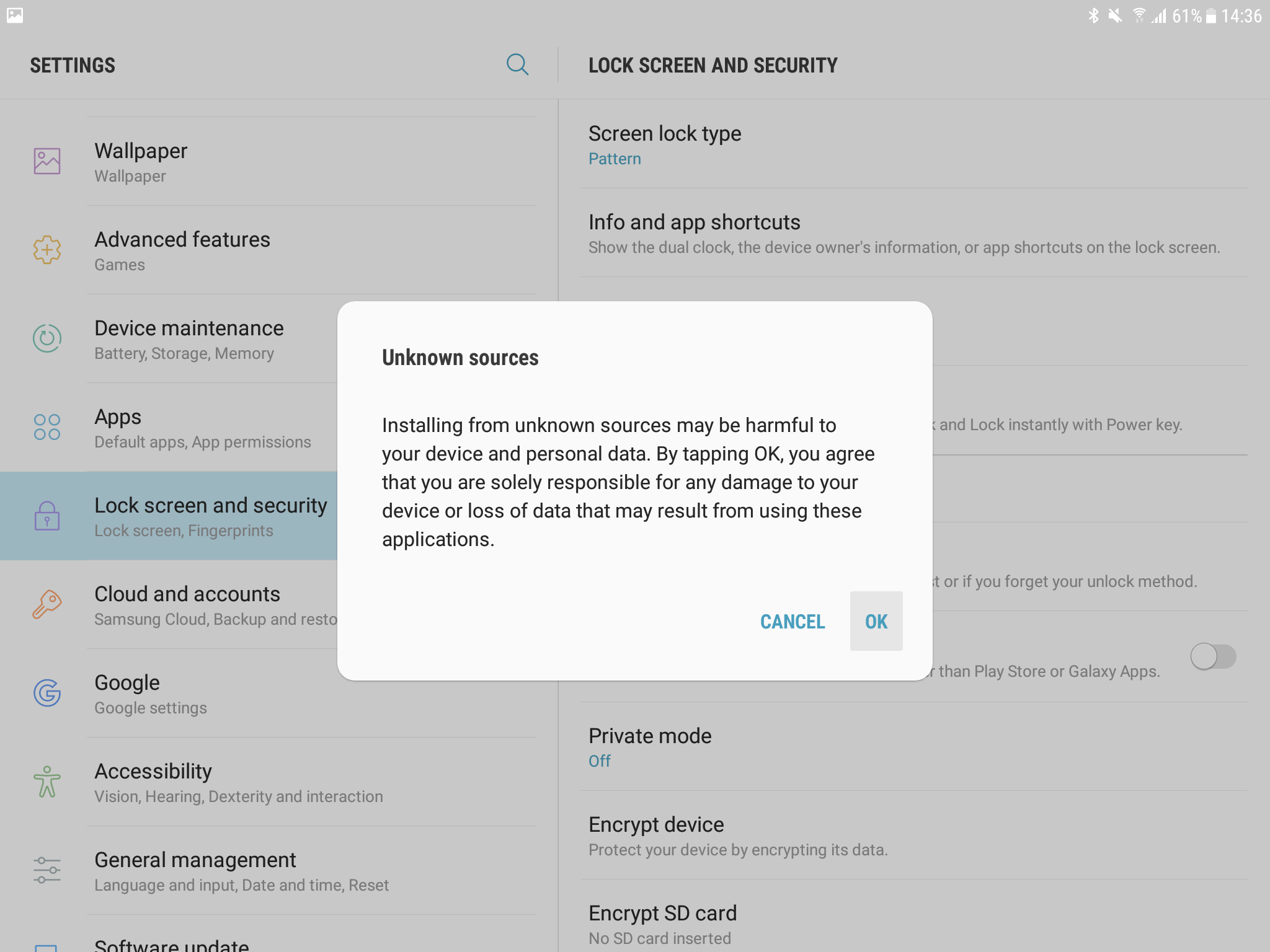
4/ To be able to install the app, you need to authorise the app on your device from your device Settings: Go to Settings > Lock Screen and Security > Check Unknown Sources then click on OK.
5/ A screen with your logo will invite you to enter your email as it is defined in the administration interface for the user to authenticate on the device.
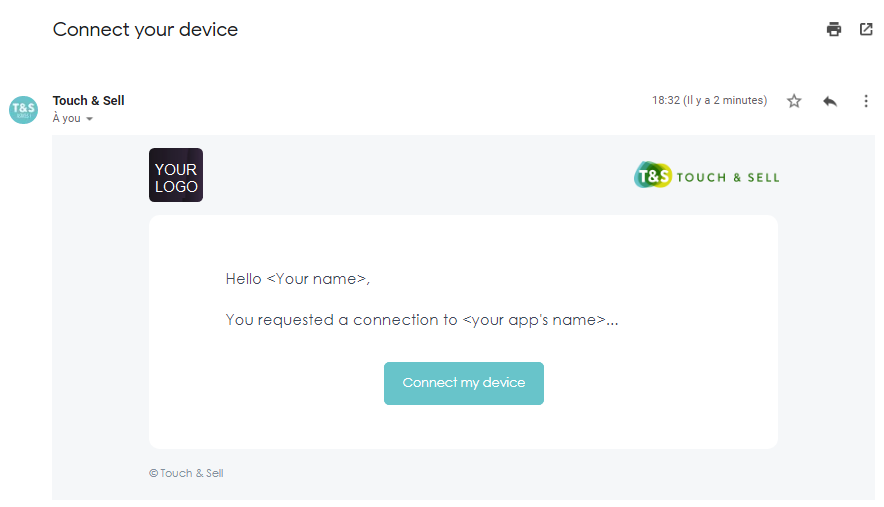
6/ An email will have been sent to the user's email. The user will just have to confirm directly from the email.
7/ Then go back to the app and click on Synchronize to retrieve your contents.
Commentaires
0 commentaire
Vous devez vous connecter pour laisser un commentaire.